Licence Management 
As an Organisation Administrator, you can use the Licence Management page to manage your organisation’s licences and control access to your projects. You can assign licences that were issued by your organisation to team members and external users to determine who can access your projects and what they can do.
To access this page, click your profile icon in the top-right corner and select My Organisation from the dropdown menu. This option is only available to Organisation Administrators.
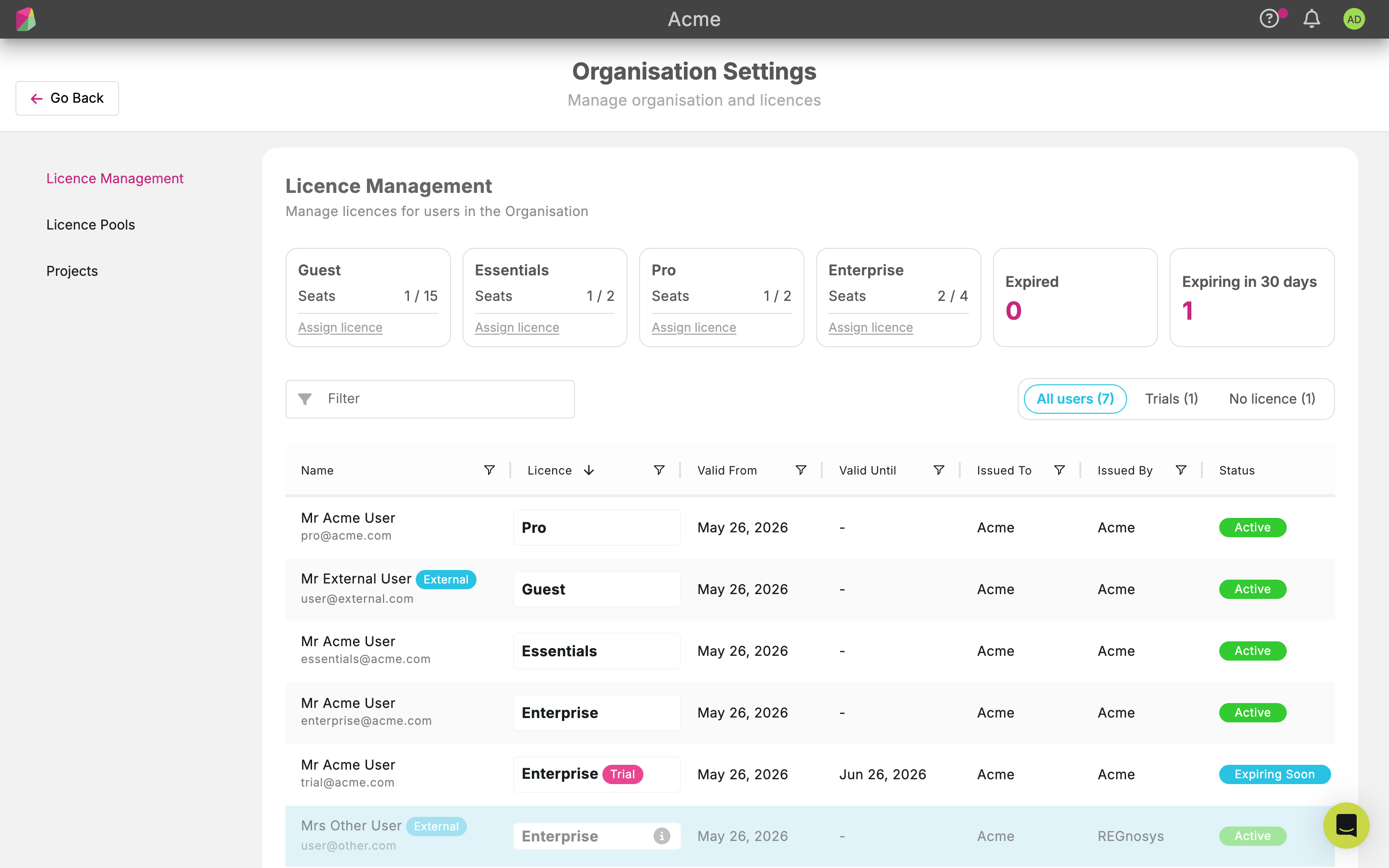
Key Dashboard Features 
The dashboard provides several tools to help you monitor and manage your licences effectively:
- Licence Summary Cards: At the top of the page, you can see a quick breakdown of your available seats for each package plan (Guest, Essentials, Pro, and Enterprise).
- Seats: Shows the number of assigned licences versus the total purchased (e.g., 3 / 17).
- Quick Assign: Click “Assign licence” directly on a card to start allocating that specific plan to a user.
- Alert Cards: Stay informed about licences that need attention:
- Expired: Shows the number of licences that have passed their end date.
- Expiring in 30 days: Helps you plan ahead by highlighting soon-to-expire licences.
- Status Filter Tabs: Quickly switch between different views of your user base:
- All users: Every user associated with your organisation.
- Trials: Only users currently using a free trial.
- No licence: Users associated with your organisation who do not have a licence assigned.
- Advanced Searching and Filtering:
- Search Bar: Use the “Filter” text box to find specific users by any field (e.g. licence package plan, email address, name).
- Column Filters: Each column in the user list (Name, Licence, Valid From, Valid Until, Issued By, Issued To, Status) has a filter icon, allowing you to narrow down the list based on specific criteria or sort the data.
The User List Table 
The main table provides a detailed view of every user:
- Name & Email: Identifies the user.
- Licence: Displays the assigned package plan. A Trial badge indicates if the licence is a temporary trial.
- Valid From & Valid Until: Shows the duration of the licence assignment.
- Issued By & Issued To: Shows the organisation that issued the licence and to which organisation it was issued to.
- Status: Indicates the status of the licence assigned to the user.
Licences issued by an external organisation appear faded in the table and cannot be edited. To view licences issued by specific organisations, use the ‘Issued by’ filter.
Managing Your Users 
Internal Team Members 
Users who sign up with your company’s email domain are automatically grouped under your organisation. You can assign them licences from your pool to grant them access to private projects.
Inviting External Guests 
To collaborate with someone outside your company, contact Rosetta Support and provide their email address. Support will add the external user to your organisation so you can assign them a licence.
How to Assign and Revoke Licences 
- To Assign: Find the user in the users list, click the + button under the “Licence” column and select an available licence. The user will immediately gain access to all private projects owned by your organisation. Alternatively, use the Quick Assign feature on the Licence Summary Cards.
- To Revoke: If a team member leaves or no longer needs access, click the x button under the “Licence” column. This licence returns to your available pool, and the user will lose access to your organisation’s private projects.
When to Contact Rosetta Support 
While most tasks are self-service, you will need to contact Rosetta Support for the following:
- Adding more Admins: To grant Organisation Administrator rights to another user.
- Managing external users: To invite or assign licences to external users, please reach out to Support.
- Subscription Changes: To purchase additional licences or change your package plan.
Understanding Package Plans 
Different plans offer different levels of features, such as the number of concurrent workspaces a user can have. You can compare all available features and limits on the Rosetta website.
If a user holds licences across multiple organisations, each organisation’s licence determines what features they can access in their private projects. The highest-tier licence will apply to any open-source projects the user has access to.
Total workspace limit is the sum of limits across all licences the user holds. For example, if one licence allows 5 workspaces and another allows 10, the user can create up to 15 workspaces in total.